> ## Documentation Index
> Fetch the complete documentation index at: https://docs.codemod.com/llms.txt
> Use this file to discover all available pages before exploring further.
# Publishing Codemods
> Learn how to publish codemods to the Codemod Registry using different authentication methods
This guide covers all the ways to publish codemods to the [Codemod Registry](/platform/registry), from local development to automated CI/CD pipelines.
## Authentication Methods
Codemod supports three authentication methods for publishing:
| Method | Best For | Secrets Required | Setup |
| ----------------------------------------- | ---------------------------- | ----------------------- | ------------------------------------ |
| [Interactive Login](#interactive-login) | Local development | None | None |
| [API Keys](#api-keys) | CI/CD pipelines, automation | Yes (`CODEMOD_API_KEY`) | Create key in UI |
| [Trusted Publishers](#trusted-publishers) | GitHub Actions, secure CI/CD | None (uses OIDC) | Verify the organization scope once\* |
\* Verifying an organization scope is only part of setup. Some packages also require adding a Trusted Publisher entry in the UI (for example, unscoped packages or when the GitHub org doesn't match the package scope). See [Organization Scopes](#organization-scopes) and [Individual Packages (Manual Configuration)](#individual-packages-manual-configuration).
## Interactive Login
The simplest way to authenticate for local development. Opens a browser for OAuth authentication.
```bash theme={null}
# Login to the registry
npx codemod login
# Verify authentication
npx codemod whoami
```
After logging in, you can publish packages:
```bash theme={null}
npx codemod publish
```
### When to Use
* Local development and testing
* Quick one-off publishes
* When you prefer browser-based authentication
## Trusted Publishers
Trusted publishers enable **passwordless publishing** from GitHub Actions using OpenID Connect (OIDC). No secrets to manage or rotate.
GitHub Actions can request short-lived tokens that cryptographically prove the workflow's identity. Codemod verifies these tokens against your configured trusted publishers.
### Benefits
* **No secrets to manage**: No API keys to create, rotate, or accidentally leak
* **Cryptographically secure**: Tokens are signed by GitHub and verified by Codemod
* **Fine-grained control**: Restrict publishing by repository, workflow, environment, or git ref
* **Short-lived tokens**: Tokens expire in \~5 minutes, limiting exposure
### Organization Scopes
Before anyone can publish a package such as `@my-org/my-codemod`, Codemod must verify that the matching GitHub organization owns the `@my-org` scope. GitHub Actions OIDC authenticates later publishes, but it does not skip this initial verification.
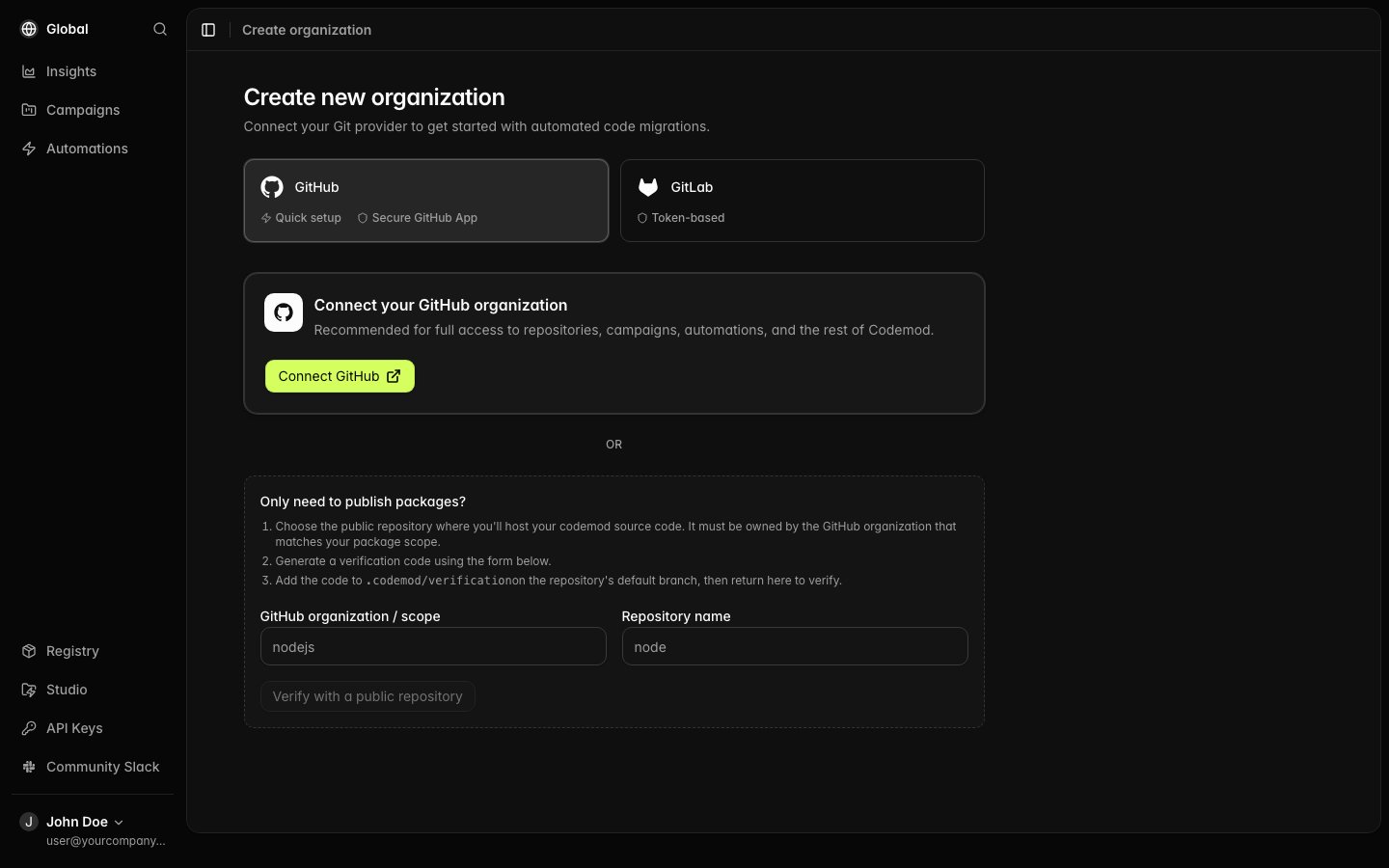
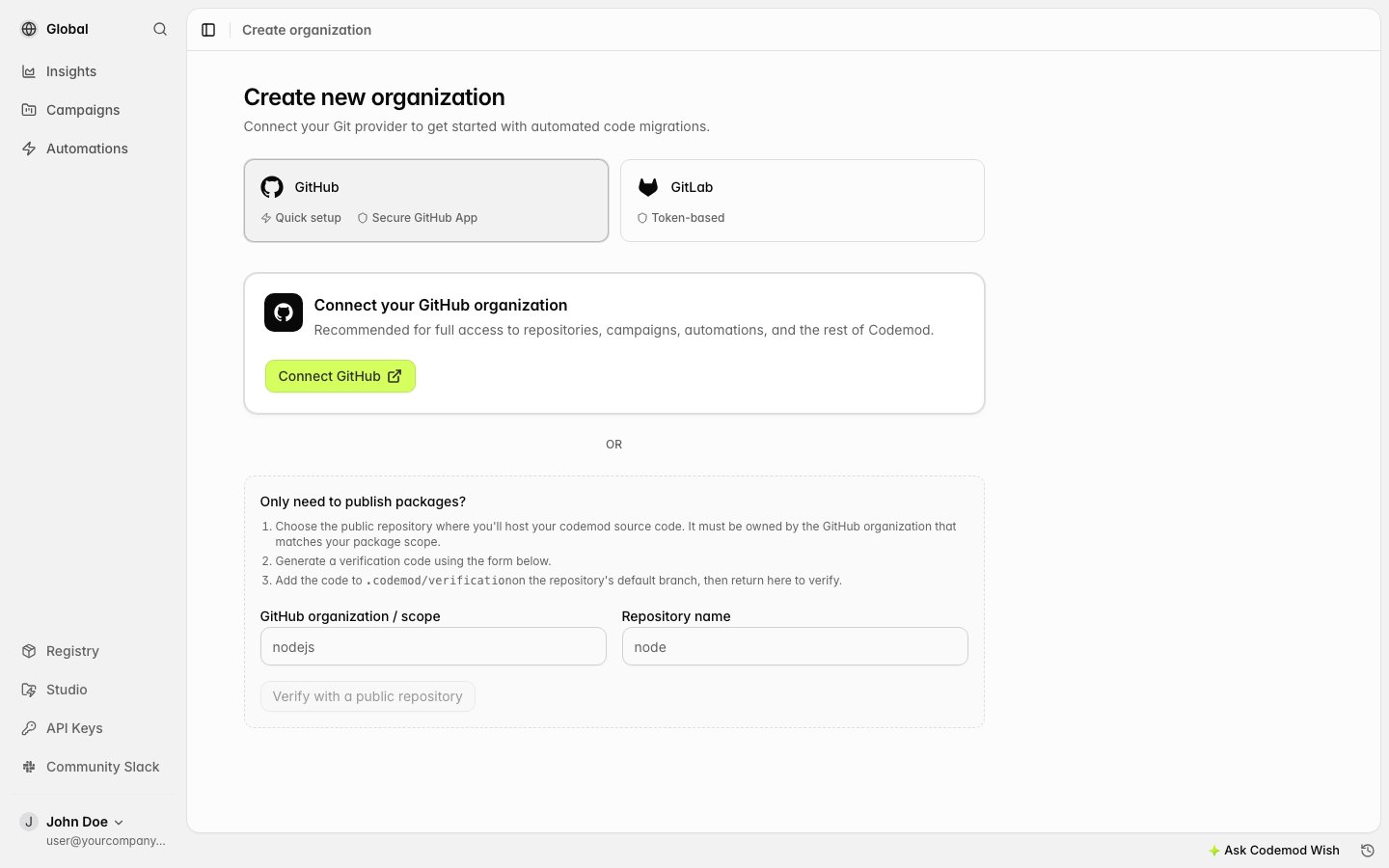
Choose one of these setup methods:
* **Connect GitHub (recommended):** Install the Codemod GitHub App for the complete platform experience, including repositories, campaigns, and automations.
* **Verify a public repository:** Prove ownership without granting the GitHub App access. This creates a registry-only organization for publishing packages.
 #### Linking Your GitHub Organization
For full access to Codemod, connect the GitHub organization that matches your package scope:
Install the [Codemod GitHub App](https://github.com/apps/codemod), select your GitHub organization, and grant access to at least one repository. This requires GitHub organization admin permissions.
Go to the [Codemod platform](https://app.codemod.com), sign in with GitHub, and select **Connect GitHub** on the organization creation page. Your organization will be linked after GitHub confirms the installation.
Once linked, anyone who can trigger a GitHub Actions workflow in the organization can publish packages under the matching scope using OIDC.
#### Verifying With a Public Repository
Use repository verification when you only need the Codemod Registry and do not want to install the GitHub App yet.
Choose a public, non-fork, active repository whose GitHub owner exactly matches your package scope. For example, the repository owner must be `nodejs` to claim `@nodejs`. You must specify the repository; Codemod does not scan the organization's repositories.
We recommend hosting your codemod source code in this same repository so it serves both as the ownership proof and the source repository.
On the organization creation page, enter the GitHub organization name and repository name, then select **Verify with a public repository**.
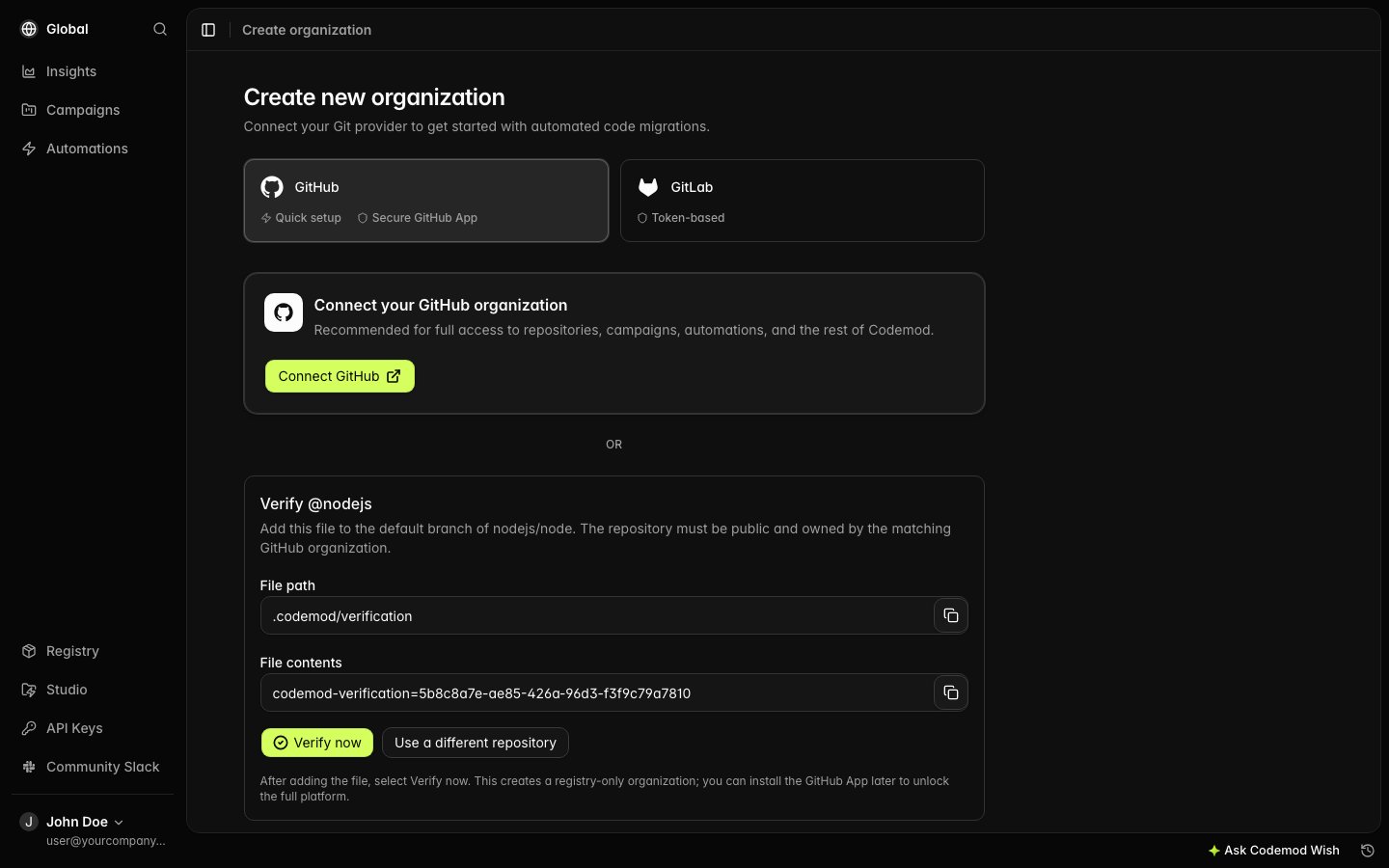
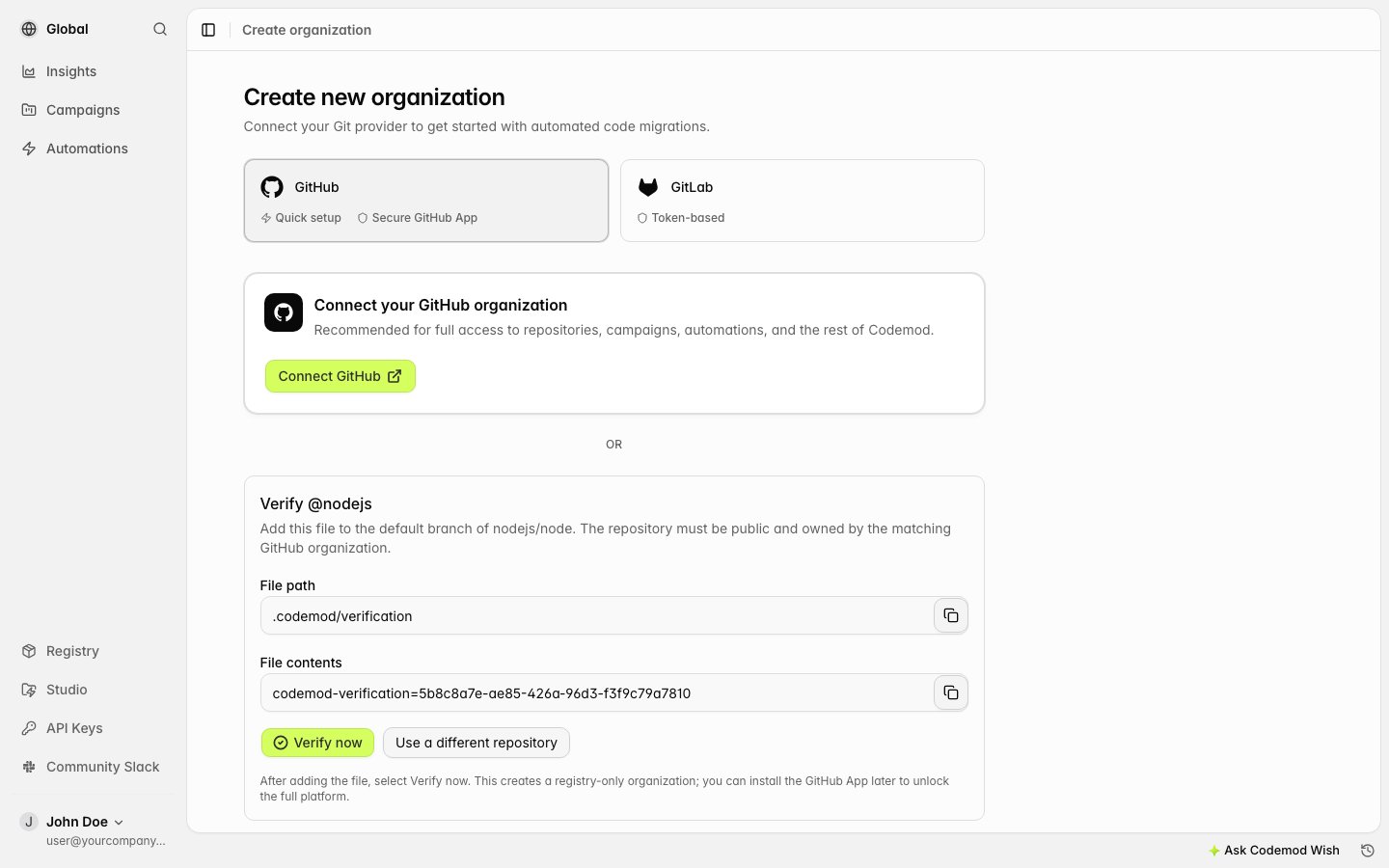
Add the displayed code to `.codemod/verification` on the repository's default branch. Commit and push the file publicly.
Return to Codemod and select **Verify now**. Codemod checks the specified repository, creates the registry-only organization, switches to it, and refreshes the page.
#### Linking Your GitHub Organization
For full access to Codemod, connect the GitHub organization that matches your package scope:
Install the [Codemod GitHub App](https://github.com/apps/codemod), select your GitHub organization, and grant access to at least one repository. This requires GitHub organization admin permissions.
Go to the [Codemod platform](https://app.codemod.com), sign in with GitHub, and select **Connect GitHub** on the organization creation page. Your organization will be linked after GitHub confirms the installation.
Once linked, anyone who can trigger a GitHub Actions workflow in the organization can publish packages under the matching scope using OIDC.
#### Verifying With a Public Repository
Use repository verification when you only need the Codemod Registry and do not want to install the GitHub App yet.
Choose a public, non-fork, active repository whose GitHub owner exactly matches your package scope. For example, the repository owner must be `nodejs` to claim `@nodejs`. You must specify the repository; Codemod does not scan the organization's repositories.
We recommend hosting your codemod source code in this same repository so it serves both as the ownership proof and the source repository.
On the organization creation page, enter the GitHub organization name and repository name, then select **Verify with a public repository**.
Add the displayed code to `.codemod/verification` on the repository's default branch. Commit and push the file publicly.
Return to Codemod and select **Verify now**. Codemod checks the specified repository, creates the registry-only organization, switches to it, and refreshes the page.
 The requesting Codemod user becomes the owner of the registry-only organization. Registry and API key features remain available, while repository-backed features ask you to install the GitHub App. You can install it later to unlock the full platform for the same organization.
For publishes authenticated with an API key or interactive login, Codemod checks that the verification file is still present and valid. A publish authenticated by GitHub Actions OIDC does not repeat that file check, because the OIDC token proves the workflow belongs to the matching GitHub organization. The initial scope verification is always required.
#### Complete GitHub Actions Workflow
Here's a complete workflow file for publishing. You can create this manually or use `codemod init` to generate it automatically:
**For a single codemod repository:**
```yaml theme={null}
# .github/workflows/publish.yml
name: Publish Codemod
on:
push:
tags:
- "v*" # Triggers on tags like v1.0.0, v2.1.3, etc.
permissions:
id-token: write # Required for OIDC token
contents: read # Required to checkout code
jobs:
publish:
runs-on: ubuntu-latest
steps:
- uses: actions/checkout@v4
- name: Publish codemod
uses: codemod/publish-action@v1
```
**For a monorepo with multiple codemods:**
If you have multiple codemods in a single repository (e.g., in a `codemods/` directory), use tags like `codemod-name@v1.0.0`:
```yaml theme={null}
# .github/workflows/publish.yml
name: Publish Codemod
on:
push:
tags:
- "*@v*" # Triggers on tags like my-codemod@v1.0.0
permissions:
id-token: write
contents: read
jobs:
publish:
runs-on: ubuntu-latest
steps:
- uses: actions/checkout@v4
- name: Extract codemod name from tag
id: extract
run: |
TAG="${GITHUB_REF#refs/tags/}"
CODEMOD_NAME="${TAG%@v*}"
echo "codemod_name=$CODEMOD_NAME" >> $GITHUB_OUTPUT
- name: Publish codemod
uses: codemod/publish-action@v1
with:
path: codemods/${{ steps.extract.outputs.codemod_name }}
```
You can also run `npx codemod init` to generate this workflow automatically. It creates the single-codemod or monorepo format based on your project structure.
### Individual Packages (Manual Configuration)
For unscoped packages or cases where the GitHub org doesn't match the package scope, configure a trusted publisher manually:
1. Go to [codemod.com/api-keys](https://go.codemod.com/api-keys)
2. Scroll to **Trusted Publishers**
3. Click **Add Trusted Publisher**
4. Select your package and enter the GitHub repository details
5. (Optional) Add restrictions for extra security
```yaml theme={null}
# .github/workflows/publish.yml
name: Publish Codemod
on:
push:
tags:
- "v*"
permissions:
id-token: write # Required for OIDC
contents: read
jobs:
publish:
runs-on: ubuntu-latest
steps:
- uses: actions/checkout@v4
- uses: codemod/publish-action@v1
```
| Field | Description | Example |
| ---------------- | ------------------------------------ | --------------------------------- |
| Package | The package to publish to (required) | `my-codemod` or `@org/my-codemod` |
| Repository Owner | GitHub org or username | `my-org` |
| Repository Name | Repository name | `my-codemod-repo` |
Once configured, any workflow in that repository can publish to the specified package.
### Optional Restrictions
Add restrictions for additional security:
| Restriction | Description | Example |
| ------------- | ----------------------------------- | ------------------------------- |
| Workflow Path | Only allow specific workflow files | `.github/workflows/publish.yml` |
| Environment | Require GitHub Environment approval | `production` |
| Ref Pattern | Only allow specific git refs | `refs/tags/v*` |
**Example with restrictions:**
```yaml theme={null}
name: Publish Codemod
on:
release:
types: [published]
permissions:
id-token: write
contents: read
jobs:
publish:
runs-on: ubuntu-latest
environment: production # Matches "Environment" restriction
steps:
- uses: actions/checkout@v4
- uses: codemod/publish-action@v1
```
### Manual OIDC Setup
If you prefer not to use the action, you can manually obtain and use the OIDC token:
```yaml theme={null}
name: Publish Codemod
on:
release:
types: [published]
permissions:
id-token: write
contents: read
jobs:
publish:
runs-on: ubuntu-latest
steps:
- uses: actions/checkout@v4
- name: Setup Node.js
uses: actions/setup-node@v4
with:
node-version: '20'
- name: Install codemod CLI
run: npm install -g codemod@latest
- name: Get OIDC token
id: oidc
uses: actions/github-script@v7
with:
script: |
const token = await core.getIDToken('https://codemod.com');
core.setOutput('token', token);
core.setSecret(token);
- name: Publish codemod
env:
CODEMOD_AUTH_TOKEN: ${{ steps.oidc.outputs.token }}
run: codemod publish
```
### Troubleshooting
Verify your trusted publisher configuration matches:
* Repository owner (case-insensitive)
* Repository name (exact match)
* Any configured restrictions (workflow path, environment, ref pattern)
**For organization scopes:** Ensure the scope was initially verified either through the GitHub App or a public repository. If you used repository verification, confirm `.codemod/verification` remains on the specified repository's default branch for publishes that do not use GitHub Actions OIDC.
Ensure your workflow has the required permissions:
```yaml theme={null}
permissions:
id-token: write # Required for OIDC token
contents: read # Required to checkout code
```
The OIDC token audience must be `https://codemod.com`. If using a custom registry, configure `GITHUB_OIDC_AUDIENCE` on the server.
## API Keys
API keys allow non-interactive authentication, perfect for CI/CD pipelines and automation.
### Creating an API Key
1. Go to [codemod.com/api-keys](https://go.codemod.com/api-keys)
2. Click **Create API Key**
3. Give it a descriptive name (e.g., "GitHub Actions - my-repo")
4. Select the permissions (typically "Publish Packages")
5. Copy the key (it won't be shown again)
### Using API Keys
**Option 1: Login with API key**
```bash theme={null}
npx codemod login --api-key $CODEMOD_API_KEY
npx codemod publish
```
**Option 2: Environment variable**
```bash theme={null}
CODEMOD_AUTH_TOKEN=$CODEMOD_API_KEY npx codemod publish
```
### GitHub Actions Example
```yaml theme={null}
name: Publish Codemod
on:
release:
types: [published]
jobs:
publish:
runs-on: ubuntu-latest
steps:
- uses: actions/checkout@v4
- name: Login to Codemod Registry
run: npx codemod login --api-key ${{ secrets.CODEMOD_API_KEY }}
- name: Publish codemod
run: npx codemod publish
```
Store your API key as a repository secret. Never commit API keys to your repository.
### When to Use
* CI/CD pipelines without GitHub Actions OIDC
* GitLab CI, CircleCI, Jenkins, etc.
* Automated publishing from any environment
* When you need explicit control over credentials
## Comparison
| Feature | Interactive Login | API Keys | Trusted Publishers |
| ------------------- | ----------------- | ----------- | ------------------------- |
| Secrets to manage | None | Yes | None |
| Works locally | Yes | Yes | No |
| Works in CI/CD | No | Yes | GitHub Actions only |
| New package publish | Yes | Yes | Yes\* |
| Token lifetime | Long-lived | Long-lived | \~5 minutes |
| Rotation needed | No | Recommended | No |
| UI configuration | None | Create key | Verify org scope once\*\* |
\* Trusted publishers can publish new packages when using a matching organization scope.
\*\* Organization scopes must first be verified through the GitHub App or a public repository. Individual packages require adding a trusted publisher in the UI.
## Best Practices
For GitHub Actions, prefer trusted publishers over API keys. No secrets to leak or rotate.
When using trusted publishers, add restrictions like environment protection for sensitive packages.
If using API keys, rotate them periodically and use the minimum required permissions.
Use git tags and GitHub releases to trigger publish workflows for clear version history.
If your package includes JSSG steps, it ships a default Insights dashboard. [Update the dashboard template](/platform/insights#dashboard-templates) so consumers start from your recommended widgets.
## Next Steps
Learn about package access levels and discovery.
Create and configure Codemod packages.
Complete publish command options.
Manage your API keys and trusted publishers.
The requesting Codemod user becomes the owner of the registry-only organization. Registry and API key features remain available, while repository-backed features ask you to install the GitHub App. You can install it later to unlock the full platform for the same organization.
For publishes authenticated with an API key or interactive login, Codemod checks that the verification file is still present and valid. A publish authenticated by GitHub Actions OIDC does not repeat that file check, because the OIDC token proves the workflow belongs to the matching GitHub organization. The initial scope verification is always required.
#### Complete GitHub Actions Workflow
Here's a complete workflow file for publishing. You can create this manually or use `codemod init` to generate it automatically:
**For a single codemod repository:**
```yaml theme={null}
# .github/workflows/publish.yml
name: Publish Codemod
on:
push:
tags:
- "v*" # Triggers on tags like v1.0.0, v2.1.3, etc.
permissions:
id-token: write # Required for OIDC token
contents: read # Required to checkout code
jobs:
publish:
runs-on: ubuntu-latest
steps:
- uses: actions/checkout@v4
- name: Publish codemod
uses: codemod/publish-action@v1
```
**For a monorepo with multiple codemods:**
If you have multiple codemods in a single repository (e.g., in a `codemods/` directory), use tags like `codemod-name@v1.0.0`:
```yaml theme={null}
# .github/workflows/publish.yml
name: Publish Codemod
on:
push:
tags:
- "*@v*" # Triggers on tags like my-codemod@v1.0.0
permissions:
id-token: write
contents: read
jobs:
publish:
runs-on: ubuntu-latest
steps:
- uses: actions/checkout@v4
- name: Extract codemod name from tag
id: extract
run: |
TAG="${GITHUB_REF#refs/tags/}"
CODEMOD_NAME="${TAG%@v*}"
echo "codemod_name=$CODEMOD_NAME" >> $GITHUB_OUTPUT
- name: Publish codemod
uses: codemod/publish-action@v1
with:
path: codemods/${{ steps.extract.outputs.codemod_name }}
```
You can also run `npx codemod init` to generate this workflow automatically. It creates the single-codemod or monorepo format based on your project structure.
### Individual Packages (Manual Configuration)
For unscoped packages or cases where the GitHub org doesn't match the package scope, configure a trusted publisher manually:
1. Go to [codemod.com/api-keys](https://go.codemod.com/api-keys)
2. Scroll to **Trusted Publishers**
3. Click **Add Trusted Publisher**
4. Select your package and enter the GitHub repository details
5. (Optional) Add restrictions for extra security
```yaml theme={null}
# .github/workflows/publish.yml
name: Publish Codemod
on:
push:
tags:
- "v*"
permissions:
id-token: write # Required for OIDC
contents: read
jobs:
publish:
runs-on: ubuntu-latest
steps:
- uses: actions/checkout@v4
- uses: codemod/publish-action@v1
```
| Field | Description | Example |
| ---------------- | ------------------------------------ | --------------------------------- |
| Package | The package to publish to (required) | `my-codemod` or `@org/my-codemod` |
| Repository Owner | GitHub org or username | `my-org` |
| Repository Name | Repository name | `my-codemod-repo` |
Once configured, any workflow in that repository can publish to the specified package.
### Optional Restrictions
Add restrictions for additional security:
| Restriction | Description | Example |
| ------------- | ----------------------------------- | ------------------------------- |
| Workflow Path | Only allow specific workflow files | `.github/workflows/publish.yml` |
| Environment | Require GitHub Environment approval | `production` |
| Ref Pattern | Only allow specific git refs | `refs/tags/v*` |
**Example with restrictions:**
```yaml theme={null}
name: Publish Codemod
on:
release:
types: [published]
permissions:
id-token: write
contents: read
jobs:
publish:
runs-on: ubuntu-latest
environment: production # Matches "Environment" restriction
steps:
- uses: actions/checkout@v4
- uses: codemod/publish-action@v1
```
### Manual OIDC Setup
If you prefer not to use the action, you can manually obtain and use the OIDC token:
```yaml theme={null}
name: Publish Codemod
on:
release:
types: [published]
permissions:
id-token: write
contents: read
jobs:
publish:
runs-on: ubuntu-latest
steps:
- uses: actions/checkout@v4
- name: Setup Node.js
uses: actions/setup-node@v4
with:
node-version: '20'
- name: Install codemod CLI
run: npm install -g codemod@latest
- name: Get OIDC token
id: oidc
uses: actions/github-script@v7
with:
script: |
const token = await core.getIDToken('https://codemod.com');
core.setOutput('token', token);
core.setSecret(token);
- name: Publish codemod
env:
CODEMOD_AUTH_TOKEN: ${{ steps.oidc.outputs.token }}
run: codemod publish
```
### Troubleshooting
Verify your trusted publisher configuration matches:
* Repository owner (case-insensitive)
* Repository name (exact match)
* Any configured restrictions (workflow path, environment, ref pattern)
**For organization scopes:** Ensure the scope was initially verified either through the GitHub App or a public repository. If you used repository verification, confirm `.codemod/verification` remains on the specified repository's default branch for publishes that do not use GitHub Actions OIDC.
Ensure your workflow has the required permissions:
```yaml theme={null}
permissions:
id-token: write # Required for OIDC token
contents: read # Required to checkout code
```
The OIDC token audience must be `https://codemod.com`. If using a custom registry, configure `GITHUB_OIDC_AUDIENCE` on the server.
## API Keys
API keys allow non-interactive authentication, perfect for CI/CD pipelines and automation.
### Creating an API Key
1. Go to [codemod.com/api-keys](https://go.codemod.com/api-keys)
2. Click **Create API Key**
3. Give it a descriptive name (e.g., "GitHub Actions - my-repo")
4. Select the permissions (typically "Publish Packages")
5. Copy the key (it won't be shown again)
### Using API Keys
**Option 1: Login with API key**
```bash theme={null}
npx codemod login --api-key $CODEMOD_API_KEY
npx codemod publish
```
**Option 2: Environment variable**
```bash theme={null}
CODEMOD_AUTH_TOKEN=$CODEMOD_API_KEY npx codemod publish
```
### GitHub Actions Example
```yaml theme={null}
name: Publish Codemod
on:
release:
types: [published]
jobs:
publish:
runs-on: ubuntu-latest
steps:
- uses: actions/checkout@v4
- name: Login to Codemod Registry
run: npx codemod login --api-key ${{ secrets.CODEMOD_API_KEY }}
- name: Publish codemod
run: npx codemod publish
```
Store your API key as a repository secret. Never commit API keys to your repository.
### When to Use
* CI/CD pipelines without GitHub Actions OIDC
* GitLab CI, CircleCI, Jenkins, etc.
* Automated publishing from any environment
* When you need explicit control over credentials
## Comparison
| Feature | Interactive Login | API Keys | Trusted Publishers |
| ------------------- | ----------------- | ----------- | ------------------------- |
| Secrets to manage | None | Yes | None |
| Works locally | Yes | Yes | No |
| Works in CI/CD | No | Yes | GitHub Actions only |
| New package publish | Yes | Yes | Yes\* |
| Token lifetime | Long-lived | Long-lived | \~5 minutes |
| Rotation needed | No | Recommended | No |
| UI configuration | None | Create key | Verify org scope once\*\* |
\* Trusted publishers can publish new packages when using a matching organization scope.
\*\* Organization scopes must first be verified through the GitHub App or a public repository. Individual packages require adding a trusted publisher in the UI.
## Best Practices
For GitHub Actions, prefer trusted publishers over API keys. No secrets to leak or rotate.
When using trusted publishers, add restrictions like environment protection for sensitive packages.
If using API keys, rotate them periodically and use the minimum required permissions.
Use git tags and GitHub releases to trigger publish workflows for clear version history.
If your package includes JSSG steps, it ships a default Insights dashboard. [Update the dashboard template](/platform/insights#dashboard-templates) so consumers start from your recommended widgets.
## Next Steps
Learn about package access levels and discovery.
Create and configure Codemod packages.
Complete publish command options.
Manage your API keys and trusted publishers.